These are captures of the actual app using fictional people and an example club. Your team’s data and available controls will depend on your role. Select any image to enlarge it.
01 / Everyone
Create an account and sign in
Start at matchday-manager.com. Use the same email address that received your club invitation.
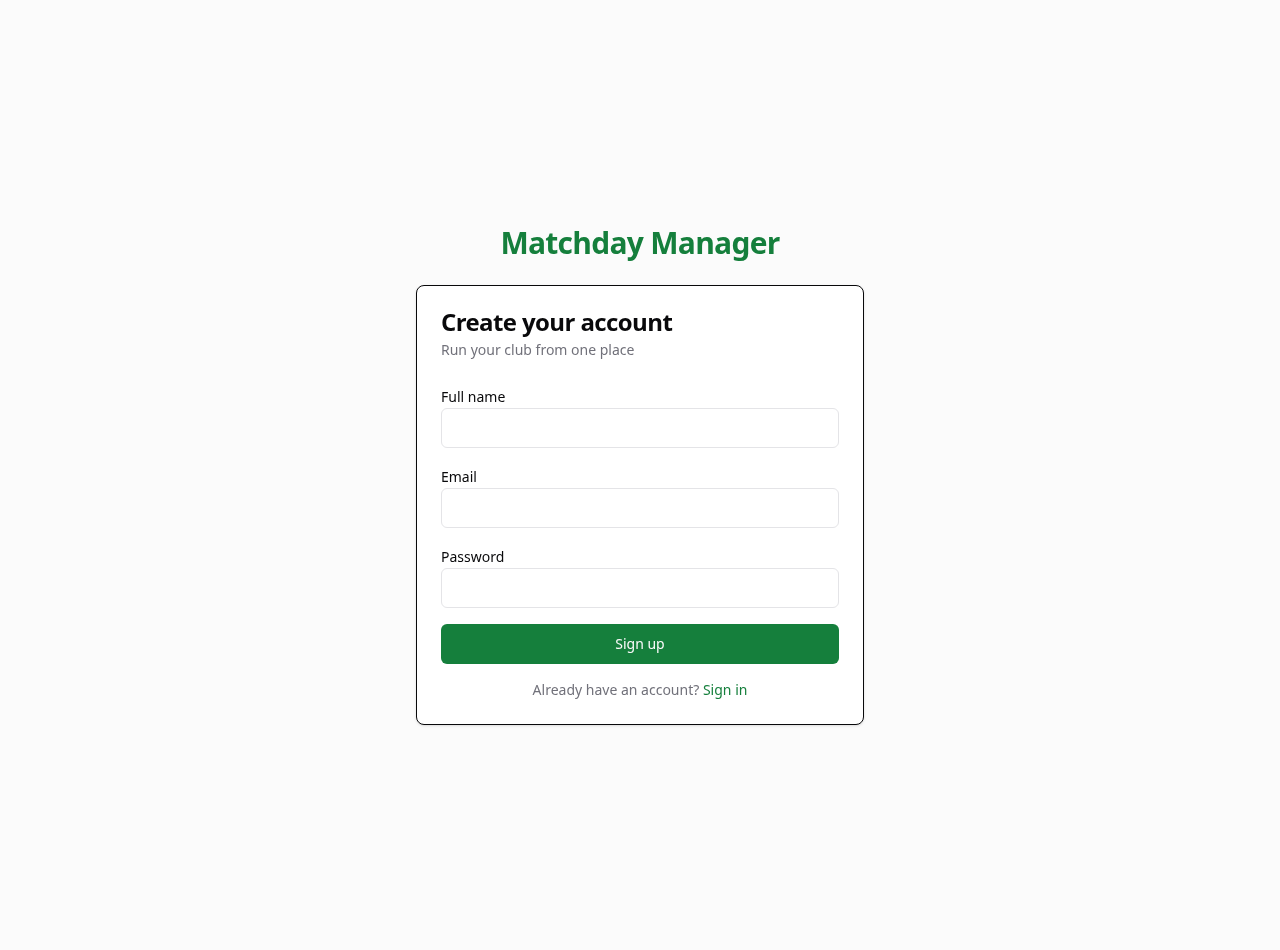
- Select Get started on the home page. Enter your Full name, Email and a Password of at least 8 characters, then select Sign up.
- If you see Check your email, open the confirmation link to finish creating your account. Check your spam folder if it does not arrive.
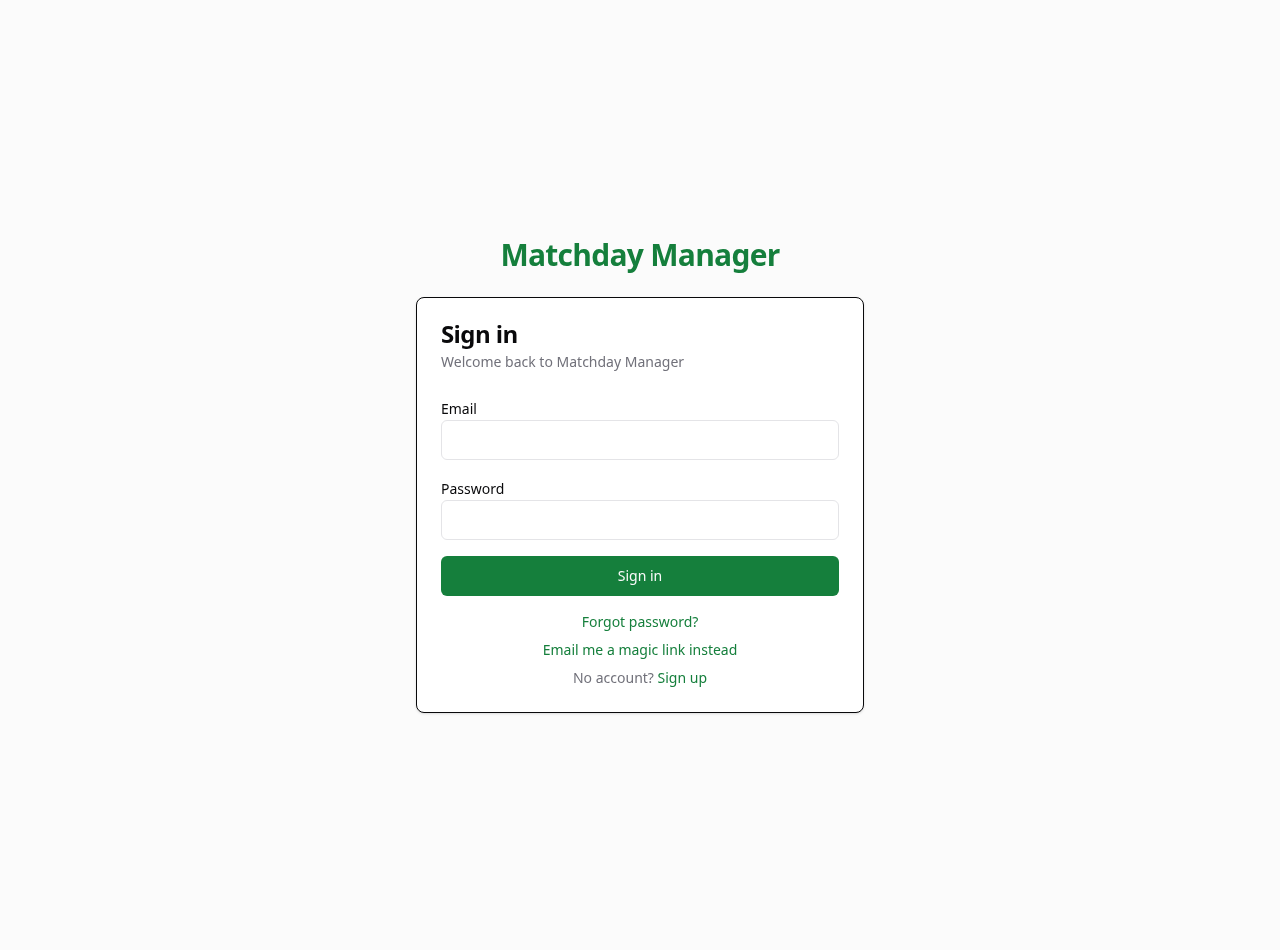
- Returning users: select Sign in and enter your email and password. The sign-in screen also offers a magic link and password recovery.
- Invited by a club? Open the invitation link and sign in or create your account with the invited email. Complete acceptance to receive the linked role.
Recover access
On Sign in, choose Forgot password? and request a reset email. Open the email link and set a new password. A magic link signs you in through email without entering a password. Use the latest link if an earlier one has expired.
 Enlarge screenshot →
 Enlarge screenshot →
02 / New managers and club admins
Find your club or create it
Search before creating a club so that the club’s teams stay together.
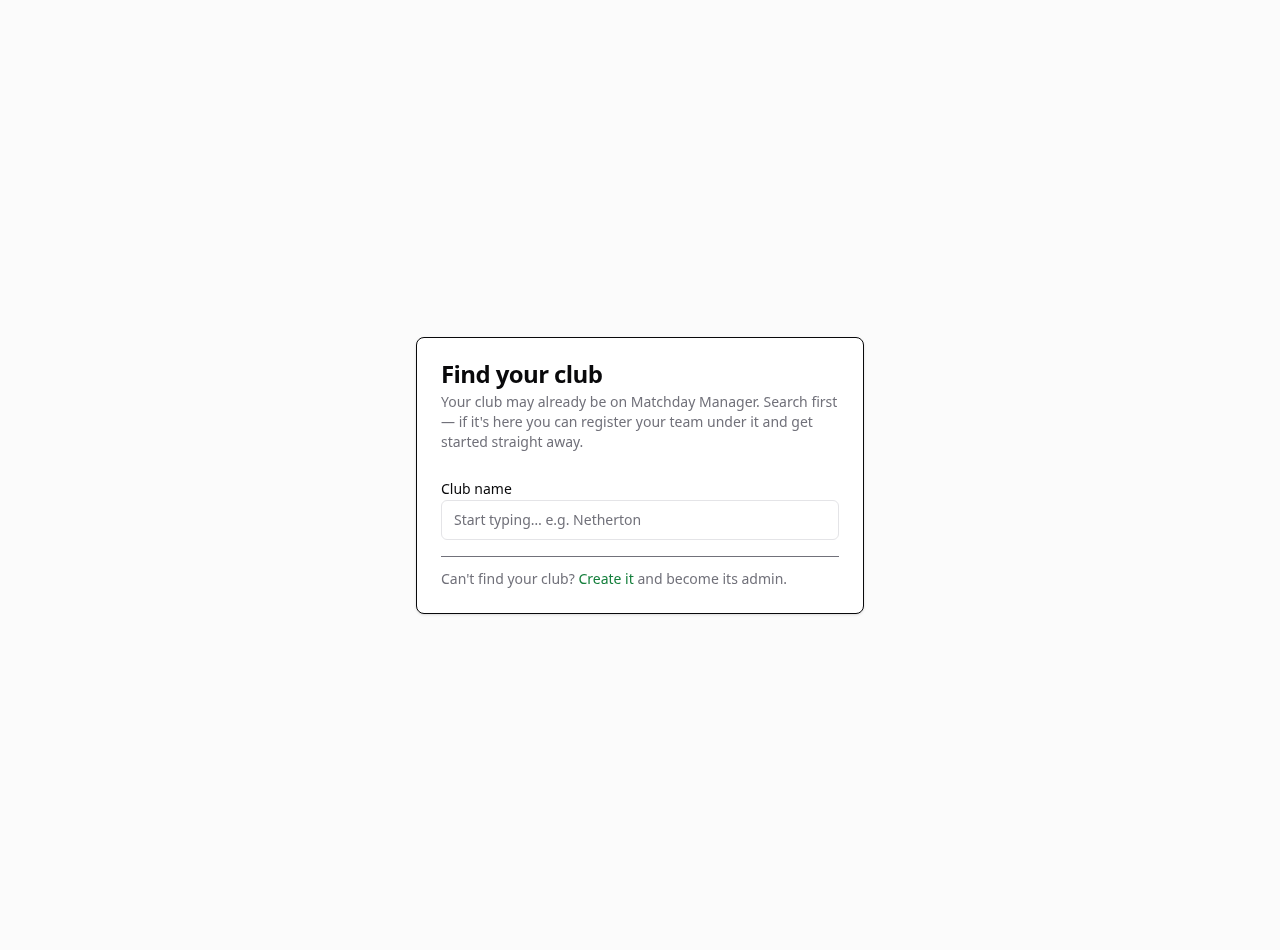
- After signing in, open Find your club. Type at least two characters of the club name.
- If the correct club appears, choose Register a team. Enter Team name, Age group and Season, then select Register team. The team is created immediately and you become its manager.
- If the club is not listed, select Create it. Complete the club creation form to become the club admin.
- As club admin, use Teams to create or open teams and invite their managers. Open Account to create club seasons before managers add league fixtures.
 Enlarge screenshot →
03 / Everyone
Choose your role and open your team
One account can belong to several teams or clubs. The selected role changes the dashboard and available actions.
- Look at the role shown in the header. If you have several roles, use Switch role to choose the right club and team. You return to its Dashboard.
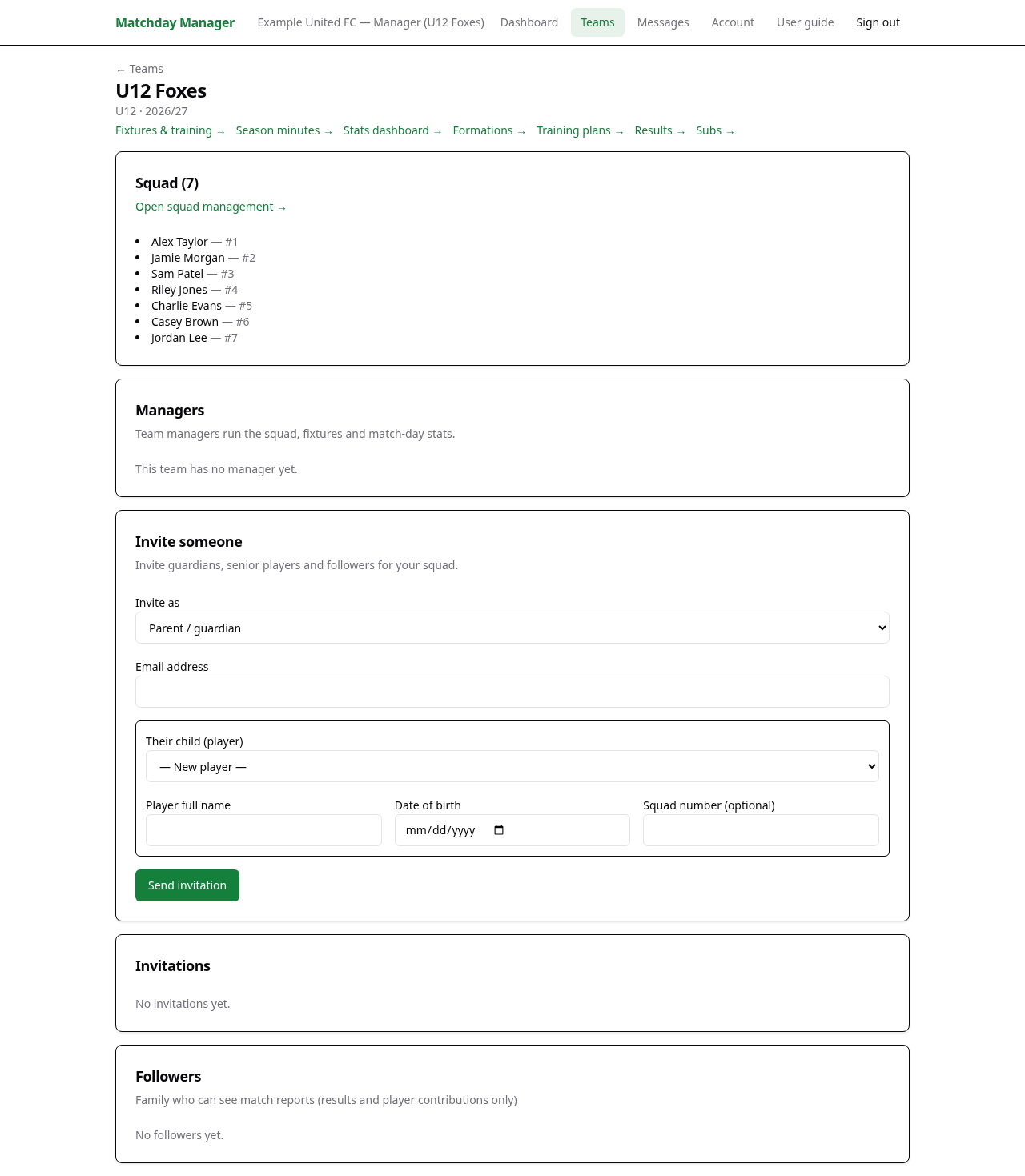
- Managers and club admins: choose Teams, then the team name. The team page links to squad management, fixtures and other tools.
- Parents and players: use Dashboard for upcoming events, availability, player profiles, recent results and balances. Open Messages for your inbox.
- If an expected option is missing, check the selected role first. Club admins who also manage matches need the manager role for that team’s match planning and live controls.
 Enlarge screenshot →
04 / Managers and club admins
Add players and invite your team
Create player records, then connect guardians or senior players using invitations.
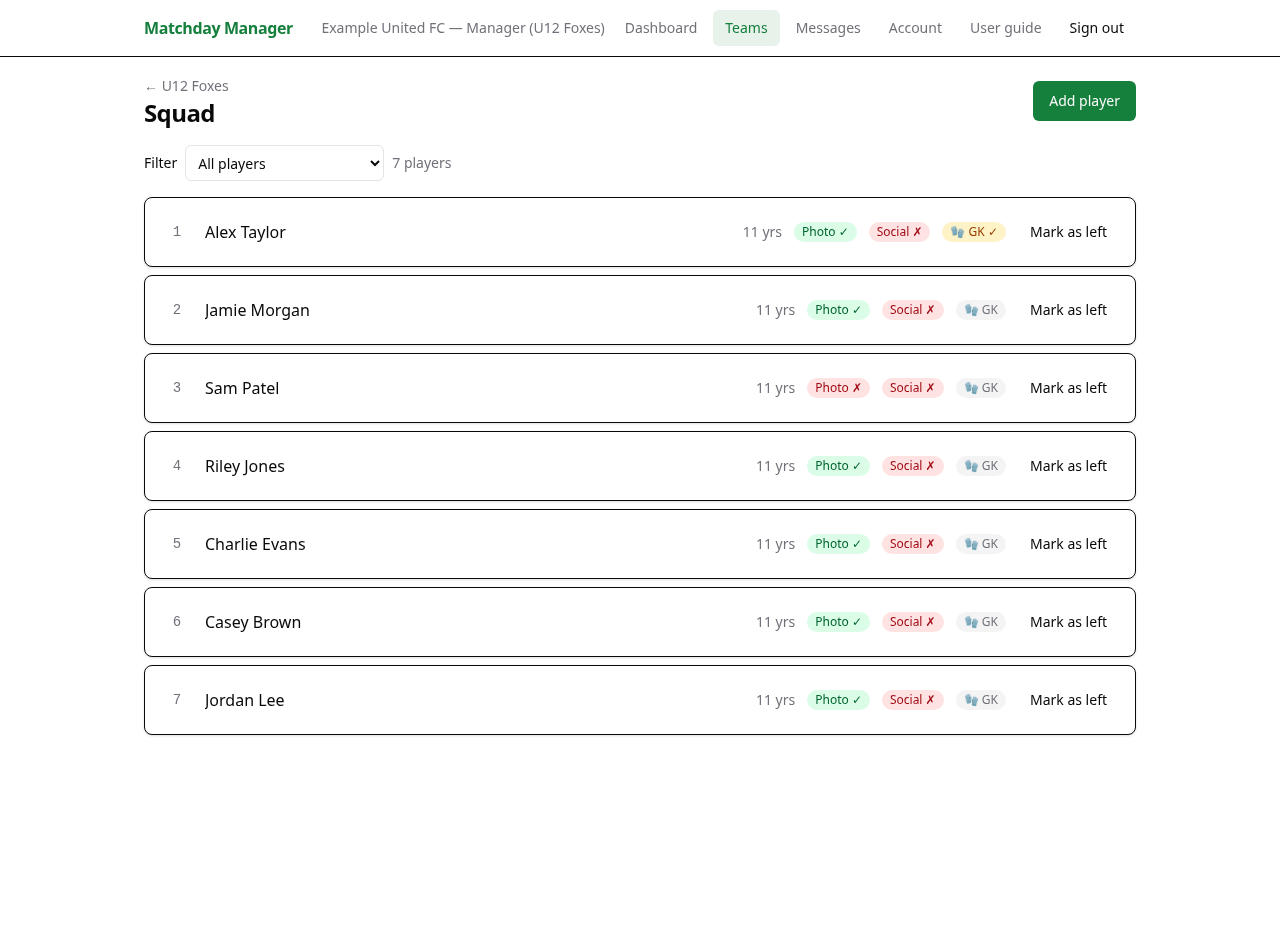
- Open Teams → your team → Open squad management → Add player. Enter the player details. Youth players under 18 need an emergency contact.
- Save with Add player. In the squad list, set squad numbers and mark goalkeepers as needed. The consent filter helps you find players without photo or social media consent.
- Return to the team page and scroll to Invite someone. Choose Invite as, enter Email address and select the existing player record where appropriate.
- Invite parents as Parent / guardian and link their child; invite adult players as Senior player; invite family as Follower (read-only match reports). Club admins can also invite Team managers.
- Send the invitation and ask the recipient to open the link and finish acceptance. Review the Invitations list if access is still missing.
Player details and privacy
Open a player’s name to view their profile. Guardians can update their linked child’s medical details, emergency contacts and consents. Sensitive details and manager-only minutes are restricted by role. Always check consent before publishing photographs or social posts.
 Enlarge screenshot →
05 / Team managers
Create fixtures and recurring training
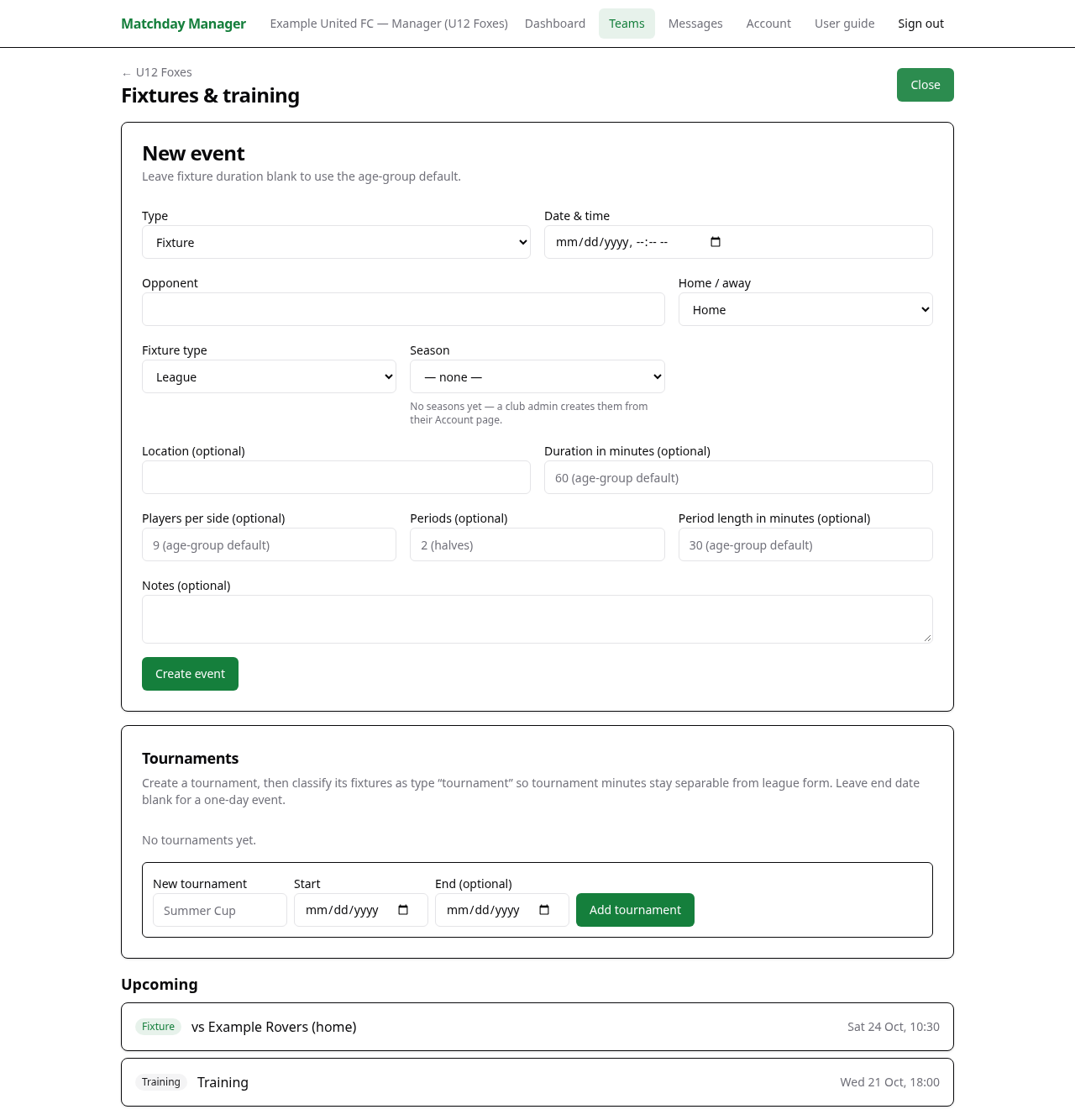
From your team page, open Fixtures & training and select Add event.
- Choose the event type and enter its start date/time. For a fixture, add Opponent and Home / away.
- Choose Fixture type. League fixtures require a Season; tournament fixtures require a Tournament. Ask the club admin to create a season from Account if the list is empty. Managers can maintain tournaments on Fixtures & training.
- Check Location, Notes and Duration. For fixtures, review Players per side, Periods and Period length. Set the real match format rather than assuming the age-group defaults fit.
- For repeating training, choose training and tick Repeats weekly. Select the days and Until date. Review the number of sessions before creating them.
- Select Create event. Open the new event to check its details and manage availability.
Dates and times
Event displays use UK time (Europe/London). When entering dates while travelling, check the displayed event time after saving: the date/time input follows your device’s local timezone.
 Enlarge screenshot →
06 / Team managers
Ask for availability and select the matchday squad
Open a fixture or training event from Fixtures & training.
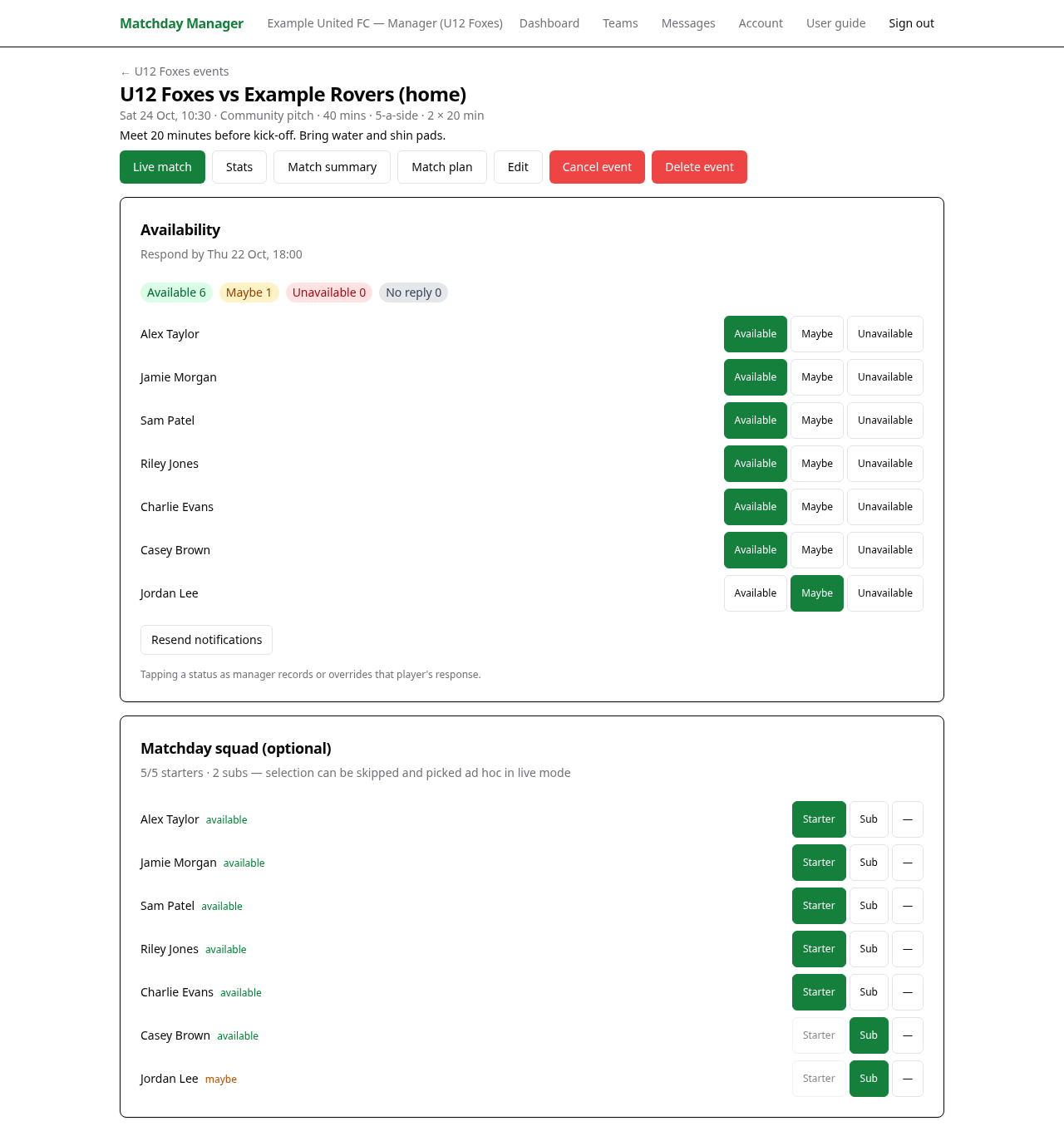
- In Availability, optionally enter a Respond-by deadline, then select Open availability. Review the notification result shown on screen.
- Monitor Available, Maybe, Unavailable and No reply. Resend notifications when needed. Tapping a status as manager records or overrides that player’s response.
- For fixtures, scroll to Matchday squad (optional). Use Starter or Sub beside each selected player; the dash removes their selection.
- Check the starter count against the fixture’s players-per-side limit. Players marked unavailable are normally hidden from selection unless already selected; change availability if they need to be included.
 Enlarge screenshot →
07 / Parents, guardians and players
Reply for your child or yourself
The dashboard brings together your events, outstanding availability and player records.
- Open Dashboard and select the event under upcoming events or pending availability.
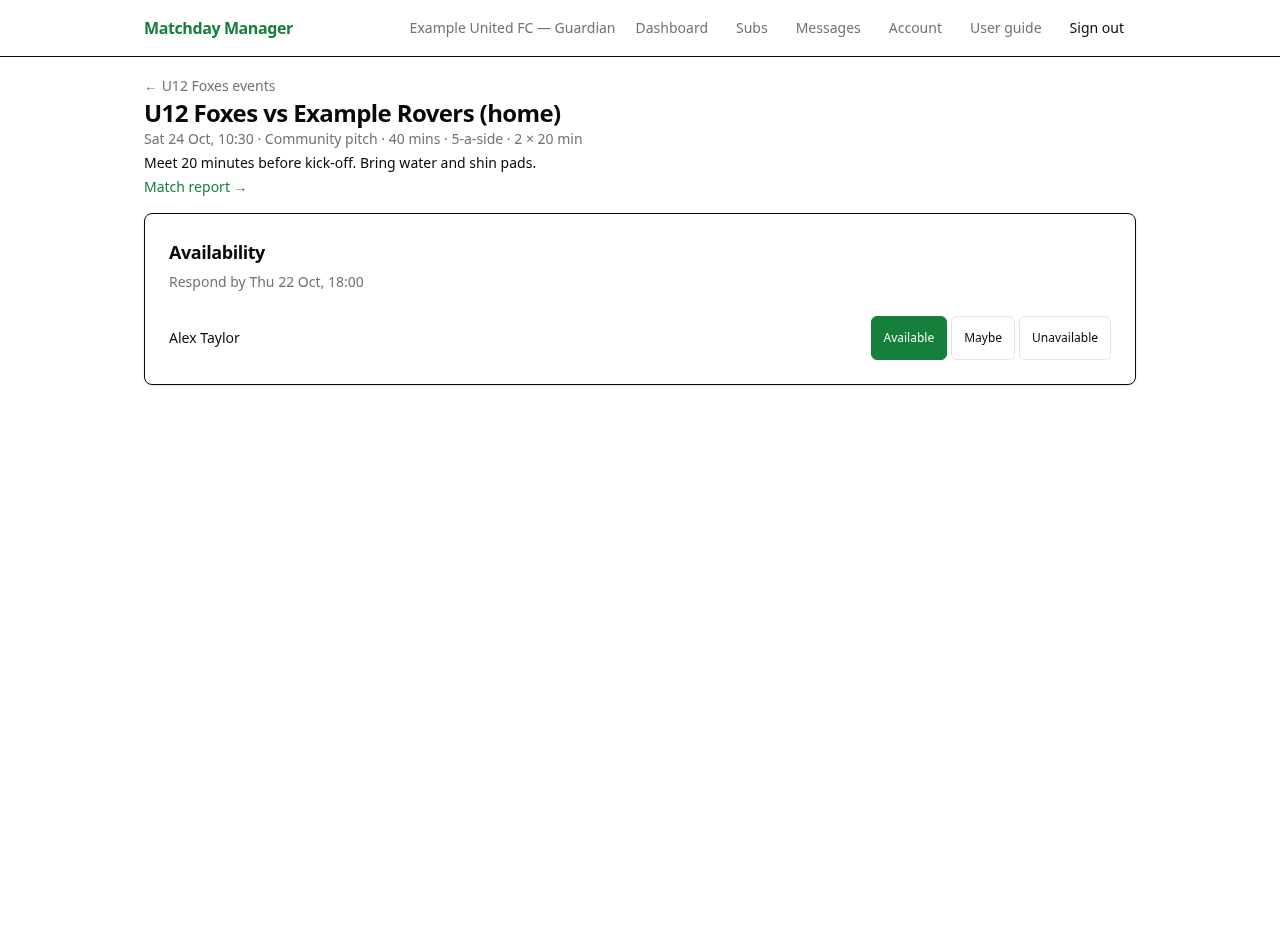
- In Availability, find your child’s name (or your own player record). Select Available, Maybe or Unavailable. The highlighted status shows the recorded choice.
- Repeat for each child linked to the event. If plans change, return and select the updated status.
- Use Your children or Your player profile on Dashboard to keep contact details and consents current. Open Subs to see balances and history.
- Open recent results or a live fixture’s match report to follow the team. A training recap is visible once the manager publishes it.
 Enlarge screenshot →
08 / Team managers
Plan positions and playing time
Match plans help you organise rotations. They do not record what actually happened on the pitch.
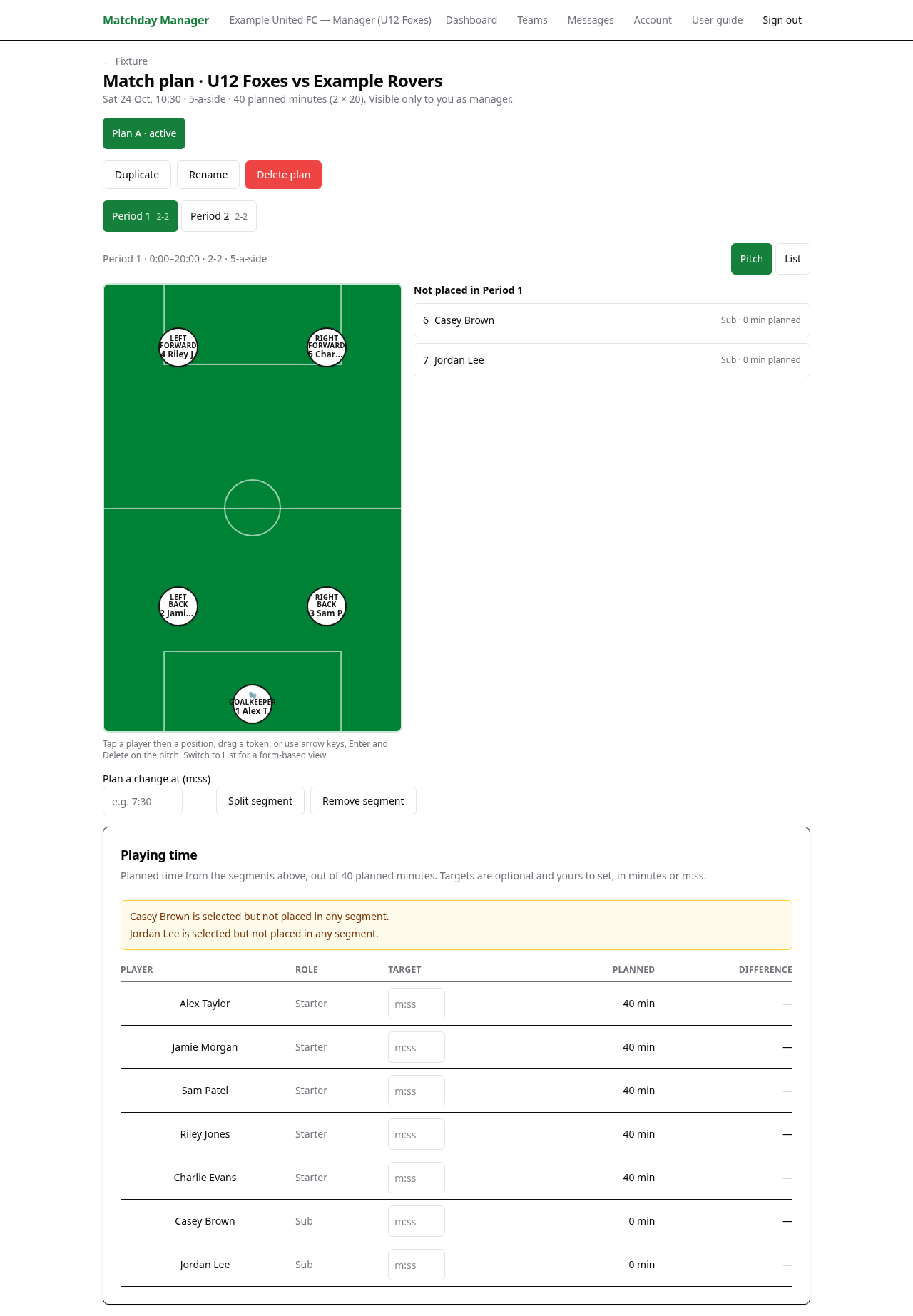
- On your team page, open Formations. Create a formation matching the fixture’s players per side. The outfield shape excludes the goalkeeper: 2–2 plus a keeper is five-a-side.
- Open the fixture, select the matchday squad, then choose Match plan. Enter a Plan name and formation, then select Create plan. The plan begins with segments for the fixture’s periods.
- Select a period or segment. Tap a player, then a pitch position to place them; drag and drop is also supported. Use the list view if you prefer it to the pitch.
- Use Plan a change at (m:ss) to split a segment for a planned rotation. Check every segment for empty positions and unplaced players.
- Review the planned minutes and targets in the fair-time panel. Use another plan or duplicate a plan to compare options; mark the plan you intend to use as active.
 Enlarge screenshot →
09 / Team managers
Run the match from the touchline
Open the fixture and select Live match. Use an internet connection so events can save.
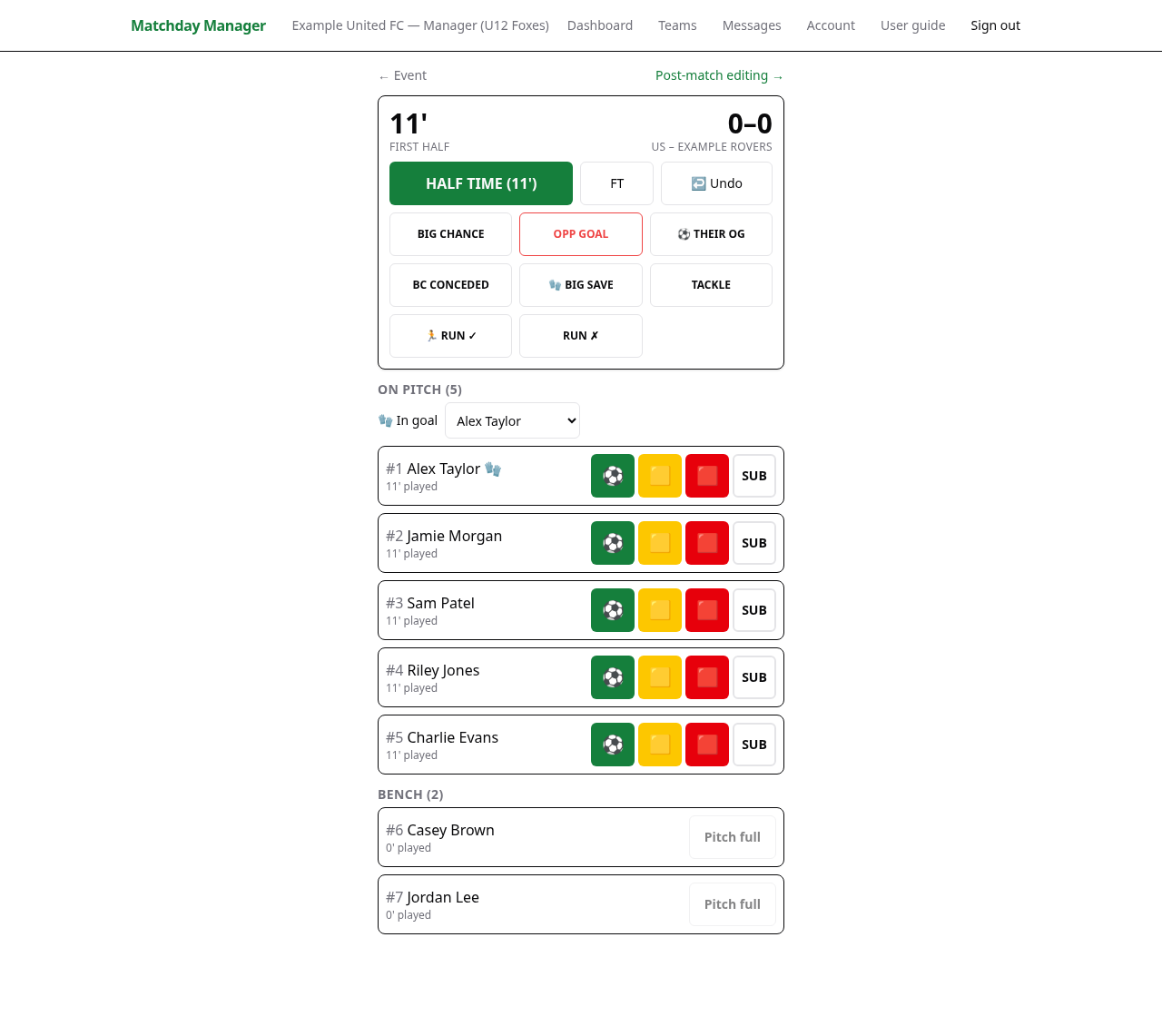
- Check the starters, goalkeeper and bench, then tap KICK OFF when play begins. Use HALF TIME and START 2ND HALF for a two-half fixture; other formats show period controls.
- For a goal, use the scorer’s goal control. Follow the assist prompt if appropriate. For a big chance, choose BIG CHANCE and complete the outcome flow so the linked chance and goal are recorded together.
- Use OPP GOAL when the opposition scores. THEIR OG records an own goal by the opposition that counts for your team without crediting one of your players.
- For substitutions, tap the outgoing player’s OFF control, then choose the incoming player from the bench. Record the change when it happens so actual minutes stay accurate.
- Use BIG SAVE, TACKLE, RUN ✓ or RUN ✗ as appropriate. A big save is assigned automatically when exactly one designated keeper is on the pitch; otherwise choose the player.
- Use Undo for the last recorded event if you made a mistake. At the end, tap FULL TIME. Open Match summary to review the match, or Stats / Post-match editing to correct recorded events and minutes.
Review the season
From the team page, open Results for past scores, Stats dashboard for filtered player statistics, or Season minutes for actual playing time. The full minutes and statistics tools are manager-only; family match reports show the permitted result and positive contributions.
 Enlarge screenshot →
10 / Team managers
Plan training and publish a recap
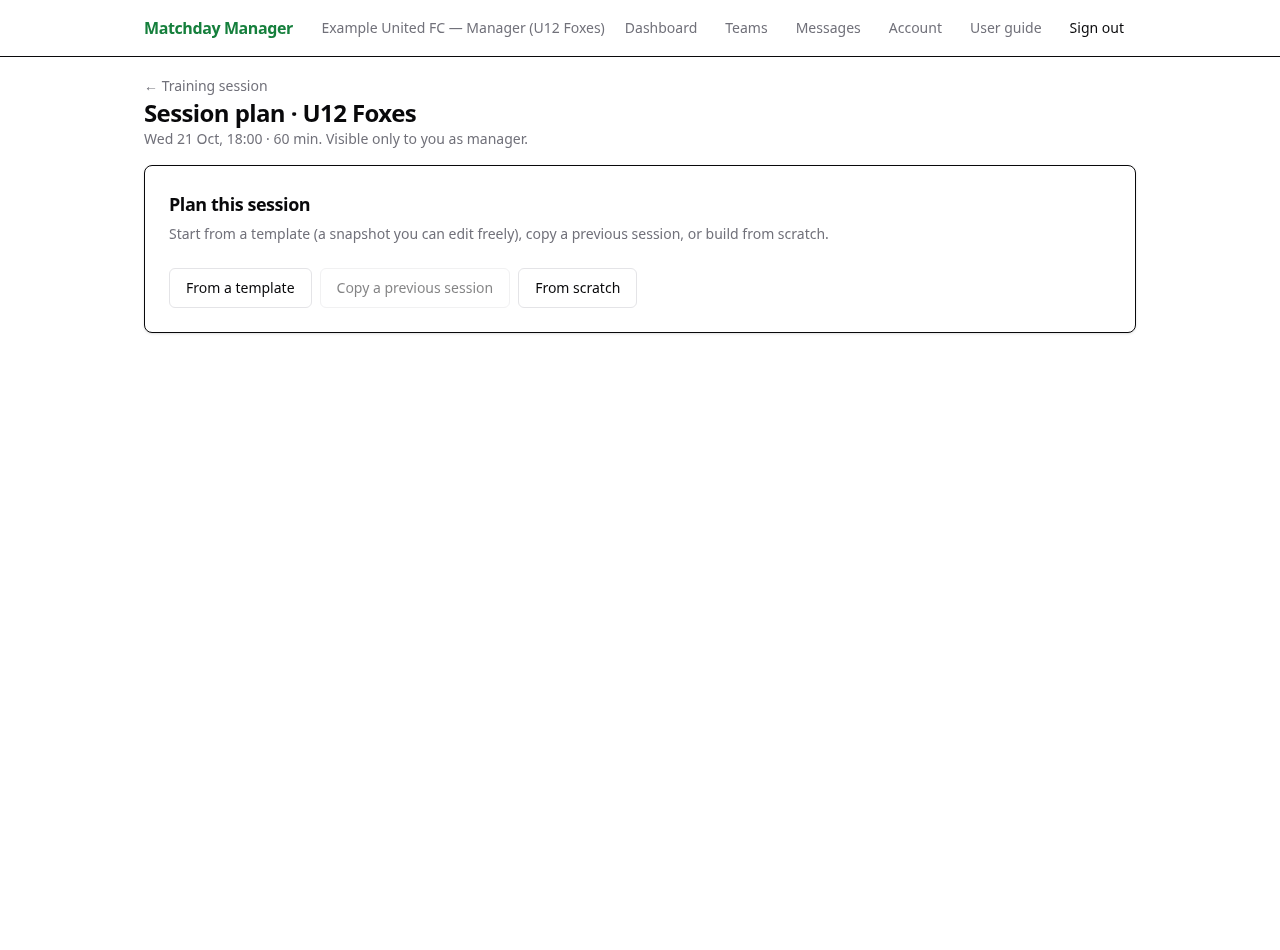
Create a training event, then open it and select Session plan.
- Choose From a template, Copy a previous session or From scratch. For a template, select it and choose Use this template; for a previous session, choose Copy this session.
- Review the session objective, age groups, expected players, space, safety and inclusion details. Adjust the practice blocks and their durations for the time available.
- Review Equipment and the duration warning. Prepare alternatives for low attendance or weather where needed. Save reusable work with Save as template.
- After training, complete the Reflection for your own review. Write the Participant recap and publish it when it is ready for guardians and players to read.
 Enlarge screenshot →
11 / Managers and club admins
Track charges and record payments
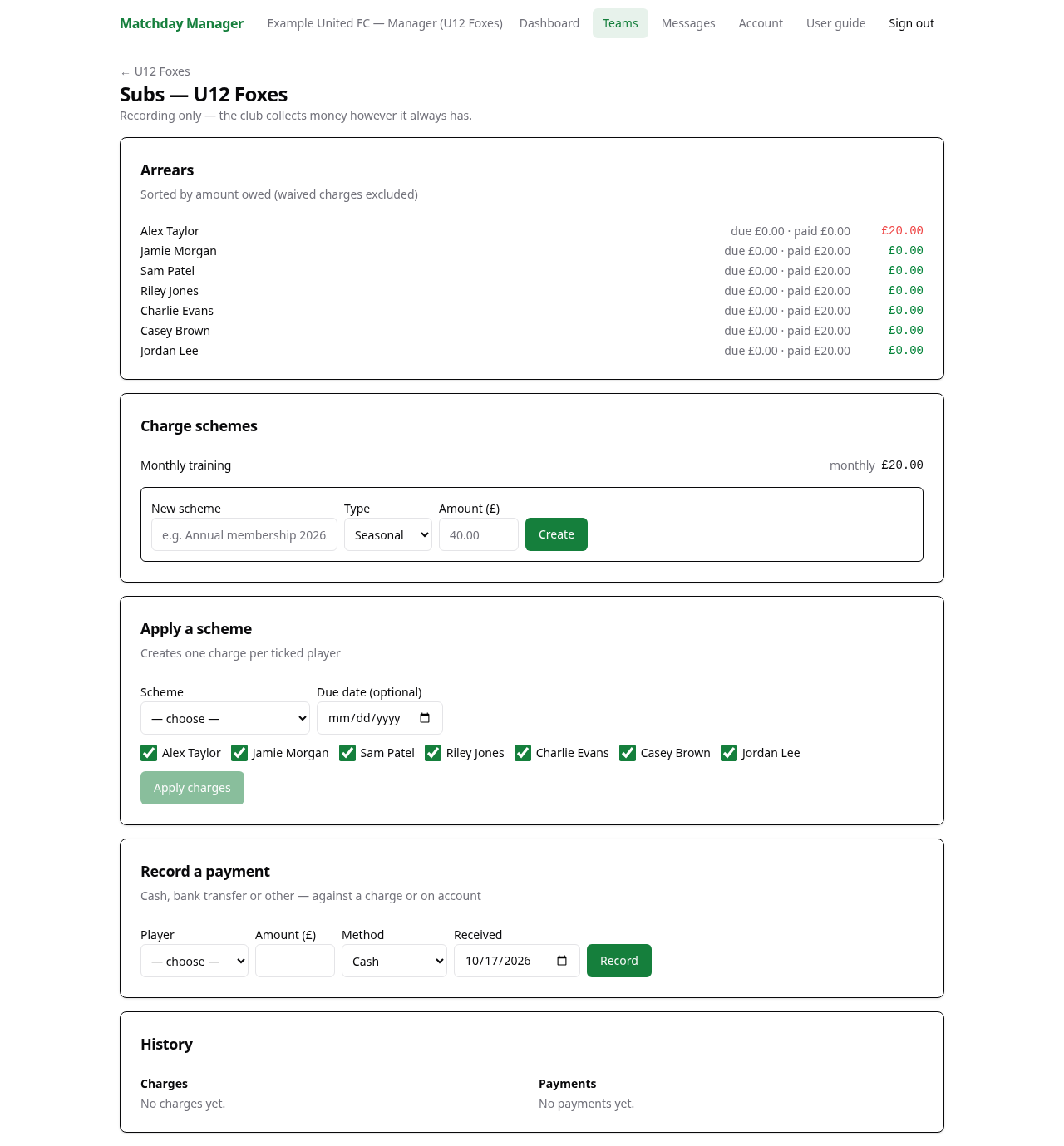
Open Teams → your team → Subs. Families use Subs in their own navigation to view their balances.
- In Charge schemes, enter a New scheme name, Type and Amount (£), then create the scheme. Types cover seasonal, monthly and per-match charges.
- In Apply a scheme, choose the scheme, optional due date and players, then apply it. Review the selected players carefully before applying a charge.
- When money has been received outside the app, use Record a payment. Select Player, Amount (£), Method and Received date, and optionally link it to a charge.
- Review Arrears and History to reconcile what was charged and paid. For fixture-specific subs, use the match-subs controls when available and review the eligible players before applying.
 Enlarge screenshot →
12 / Everyone; sending is for staff
Send a broadcast and read club messages
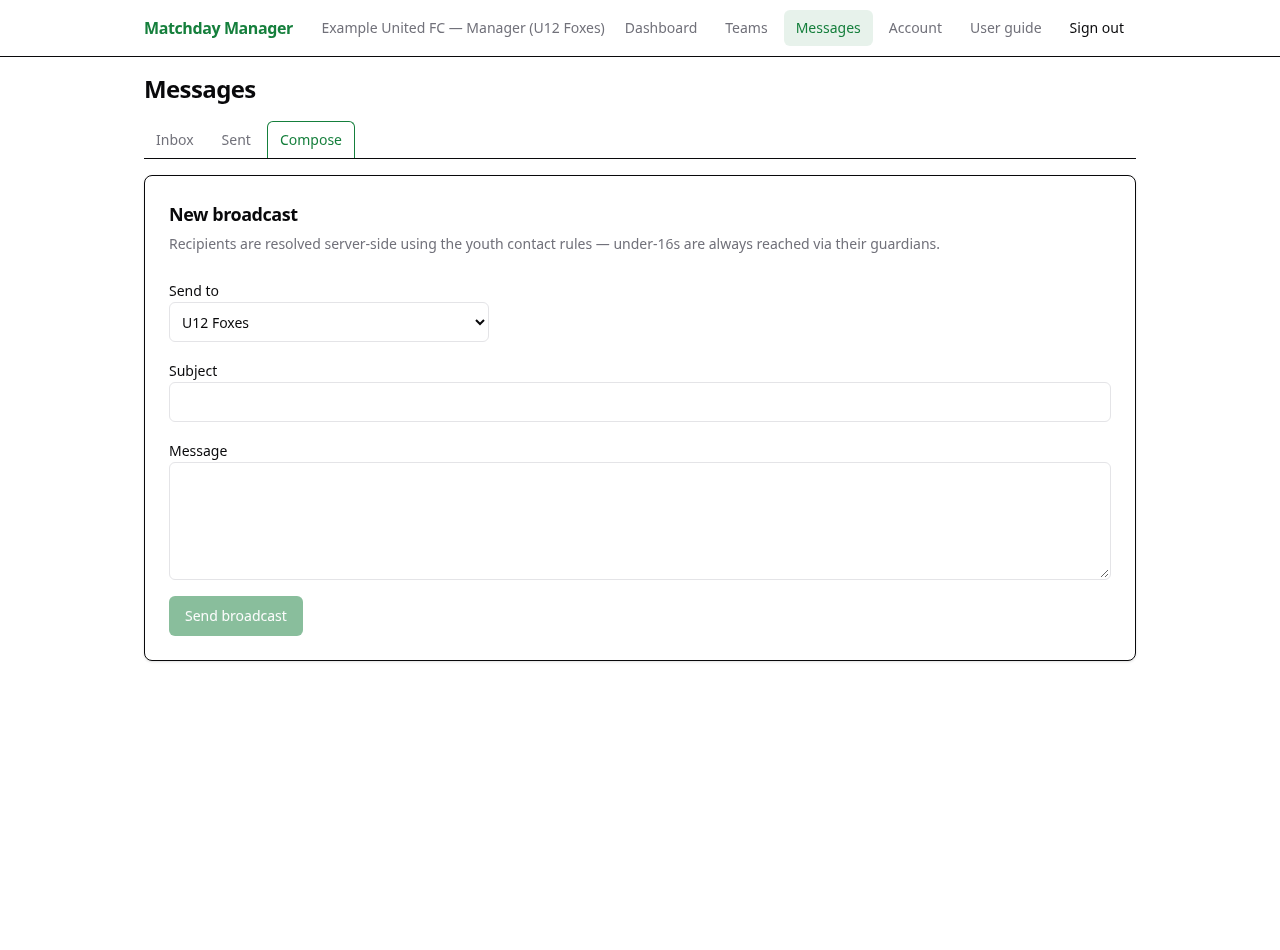
Open Messages from the header. Guardians, players and followers receive the messages their role allows.
- To read messages, open Inbox and select a message to expand it. The unread badge helps you find new messages.
- Managers and club admins: choose Compose. In Send to, select the intended team. Club admins can also choose Whole club.
- Enter Subject and Message. Check the audience and wording, then select Send broadcast.
- Review the recipient and emailed counts. Open Sent to review delivery summaries. A recipient count and an emailed count may differ.
 Enlarge screenshot →
13 / Everyone
Troubleshooting and using your phone
Use these checks when a screen or action is missing.
I cannot see my team or child
Check Switch role and the club shown in the header. Confirm you accepted the invitation with the invited email. Ask the club manager to check the linked player or active membership.
I can see the team but not match controls
Choose the Manager role for that team. Club admin and follower roles have different tools. A cancelled fixture also hides match actions.
An invitation or reset email is missing
Check spam and the email address used. Ask the inviter to review the invitation or request a fresh password-reset link. If links return to the wrong site, give the club administrator the link and error details without sharing your password.
A player is missing from selection
Check whether they are marked unavailable or former. Change the event’s availability if appropriate, or restore active squad membership. For match plans, also check that they are selected for that fixture.
The score or minutes look wrong
Managers should review kick-off, period boundaries, goals, substitutions and full time in Stats. Correct the underlying events. Planned minutes do not change the recorded match.
Install on a phone
Open Account and look for the installation card. Where supported, use the browser’s install option; on iPhone/iPad use Safari’s Share → Add to Home Screen. Installation adds a shortcut-like app experience; keep a working connection when saving changes.
A save or message fails
Keep the error text, check your connection and selected role, then review whether the action already appeared before retrying. For help, tell your club manager the page, action and time; avoid sharing medical details or passwords in screenshots.
Back to contents ↑No matching chapters. Try another word or clear your search.